

Using scenes and styles
On this page
Create stunning, on-brand videos in minutes with pre-built scenes and styles. Choose from your master deck of pre-styled and pre-formatted scenes to build your video in a handful of clicks.
Common Questions
- How do I add new scenes to my video?
- Where can I find pre-built video scenes?
- How do I add transitions between scenes?
- How do I change the background of a pre-built scene?
- Are there customizable characters I can use in my video?
Where to find scenes and styles
Scenes live within each separate video project. To access them, open a video project, choose a template, or create a new video, then add a new scene.
To add a scene, click the "Add scene" button above the list of scene thumbnails on the left side of the screen in the Script Editor. From within the Script Editor, you can also click the purple "Add" button that appears when you hover between any two scenes in the list.
You can also add a scene by clicking the purple "Add scene" button on the right side of the timeline at the bottom of your screen.
How to use scenes
To add a scene to your video, simply click the scene you'd like to use. The scene will be added to your video.
Every scene will be automatically branded with your set color schemes, fonts, and logo. Once added to your video, you can tweak the scene with your own text and media, or rearrange the layout to work best for you.
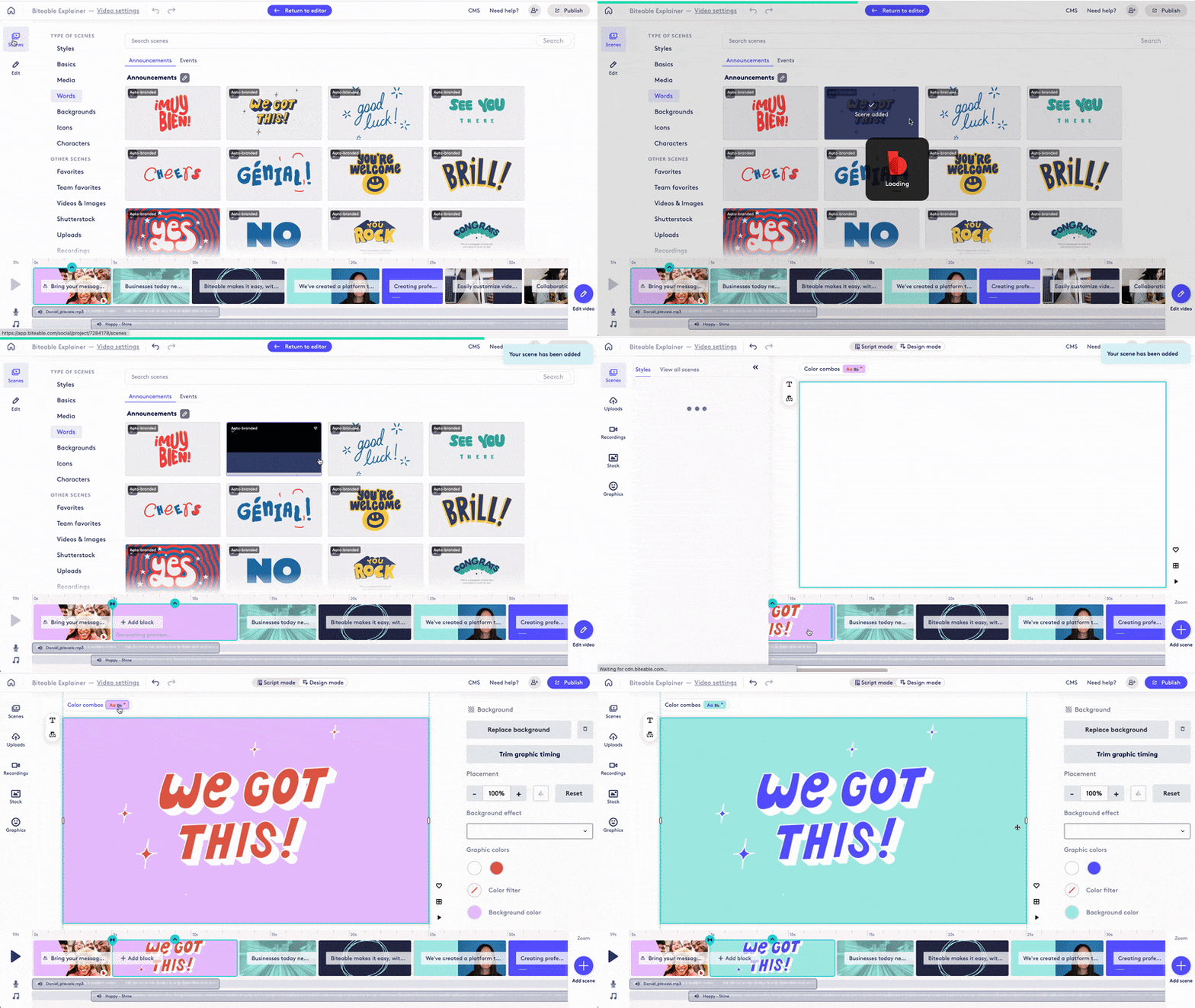
From here you can:
-
Change the colors of your scene
-
Add media
Types of scenes
You have access to a variety of scenes, for all types of videos. Use these categories to help find the perfect scene for every message.
Styles
A variety of common scenes with the same vibe. Create a quick video by selecting from the same style.
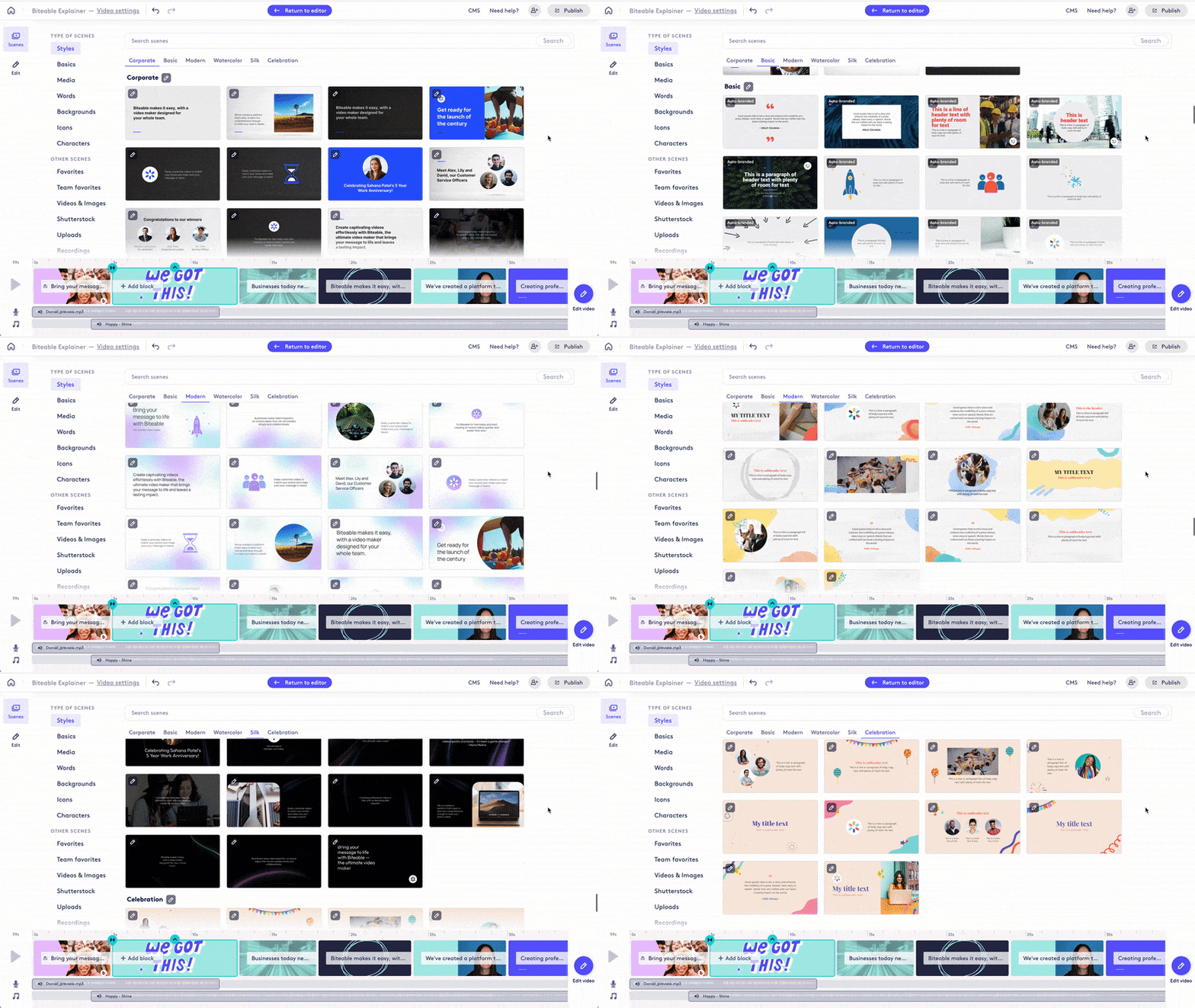
- Corporate
- Basic
- Modern
- Silk
- Watercolor
- Celebration
Styles Basics
Here you'll find your video basics, with a focus on intros, text and numbers.
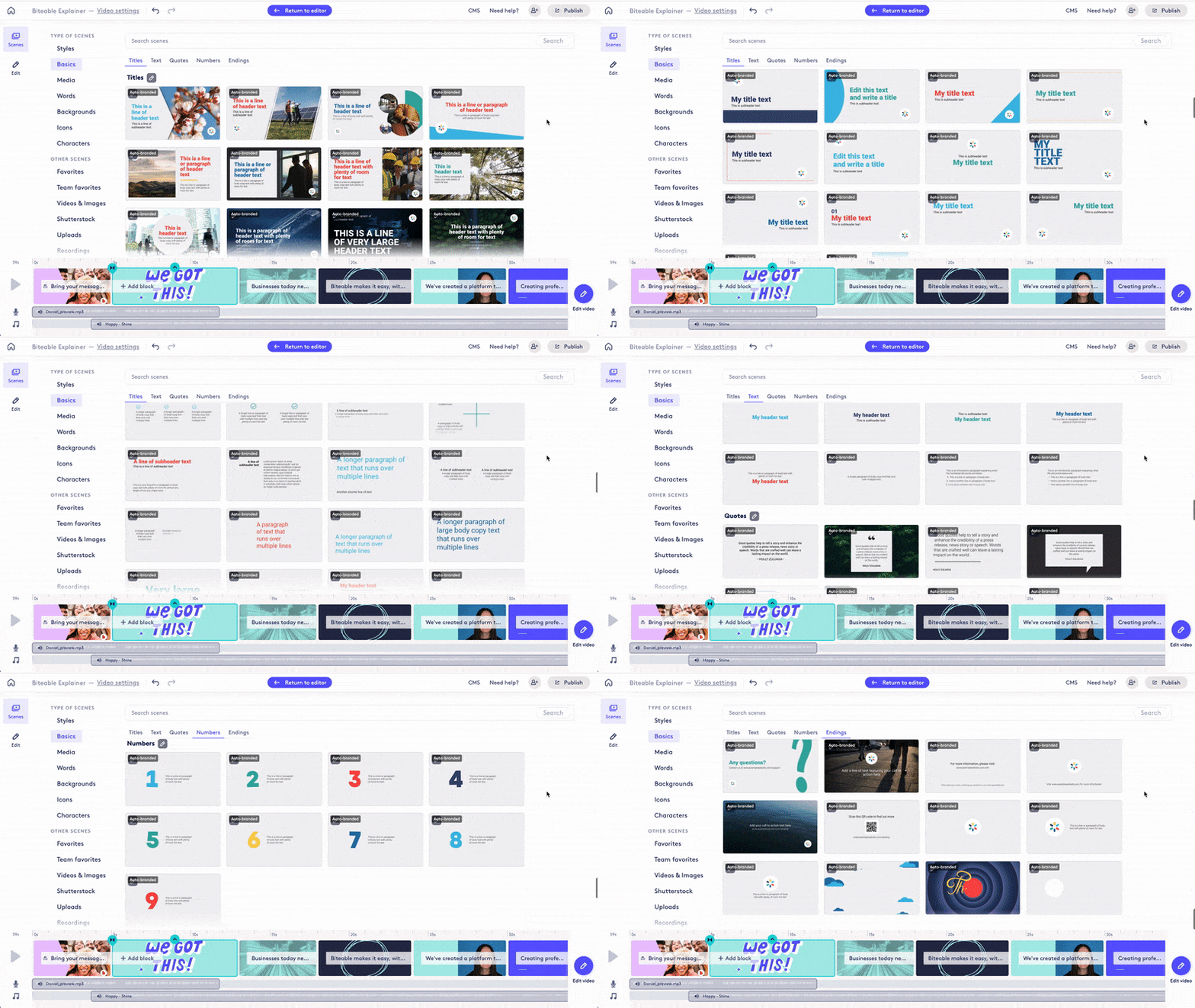
- Titles
- Text
- Quotes
- Numbers
- Endings
Media
Scenes designed for video and images.
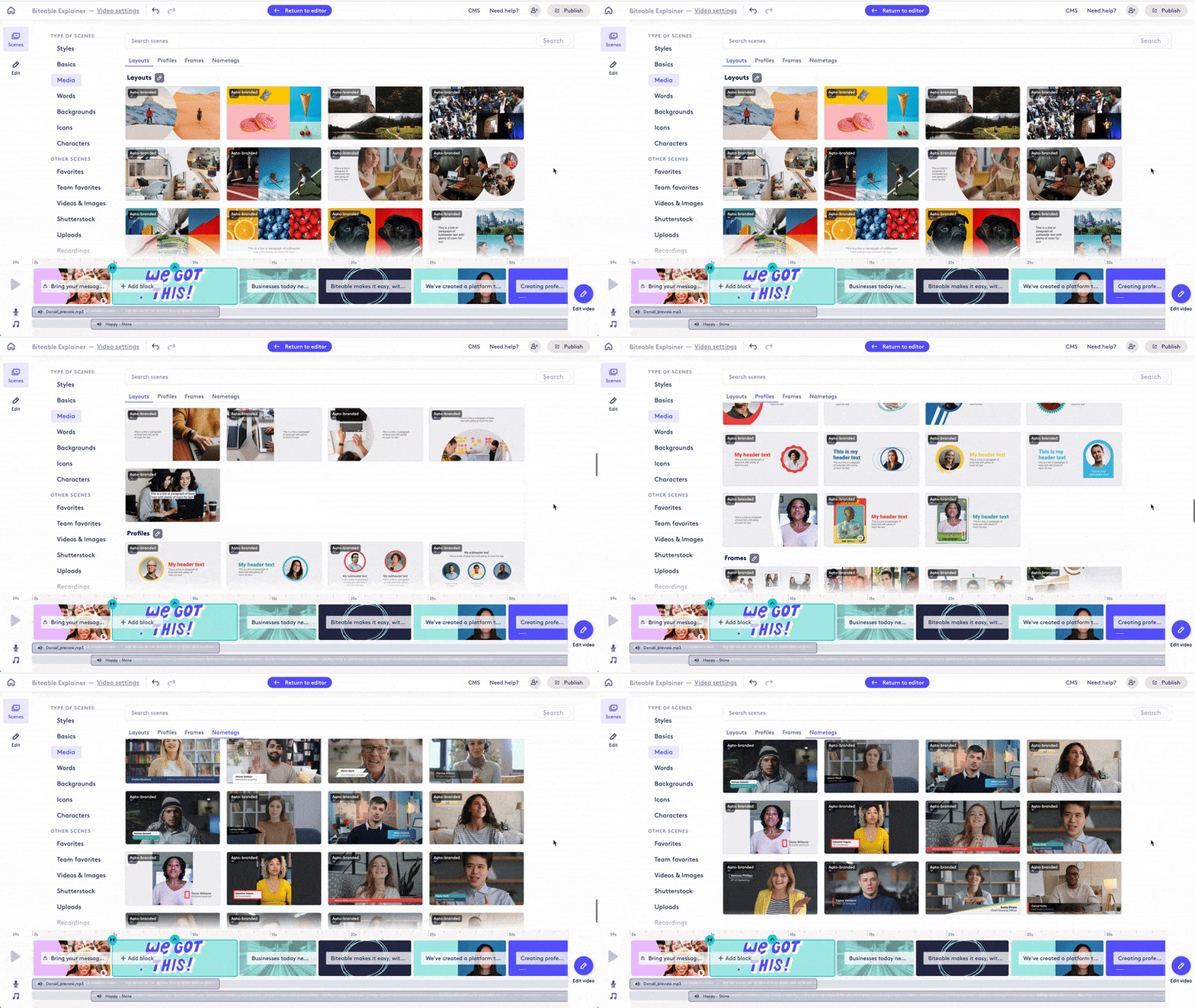
- Layouts
- Profiles
- Frames
- Nametags
Words
Common words and phrases, animated.
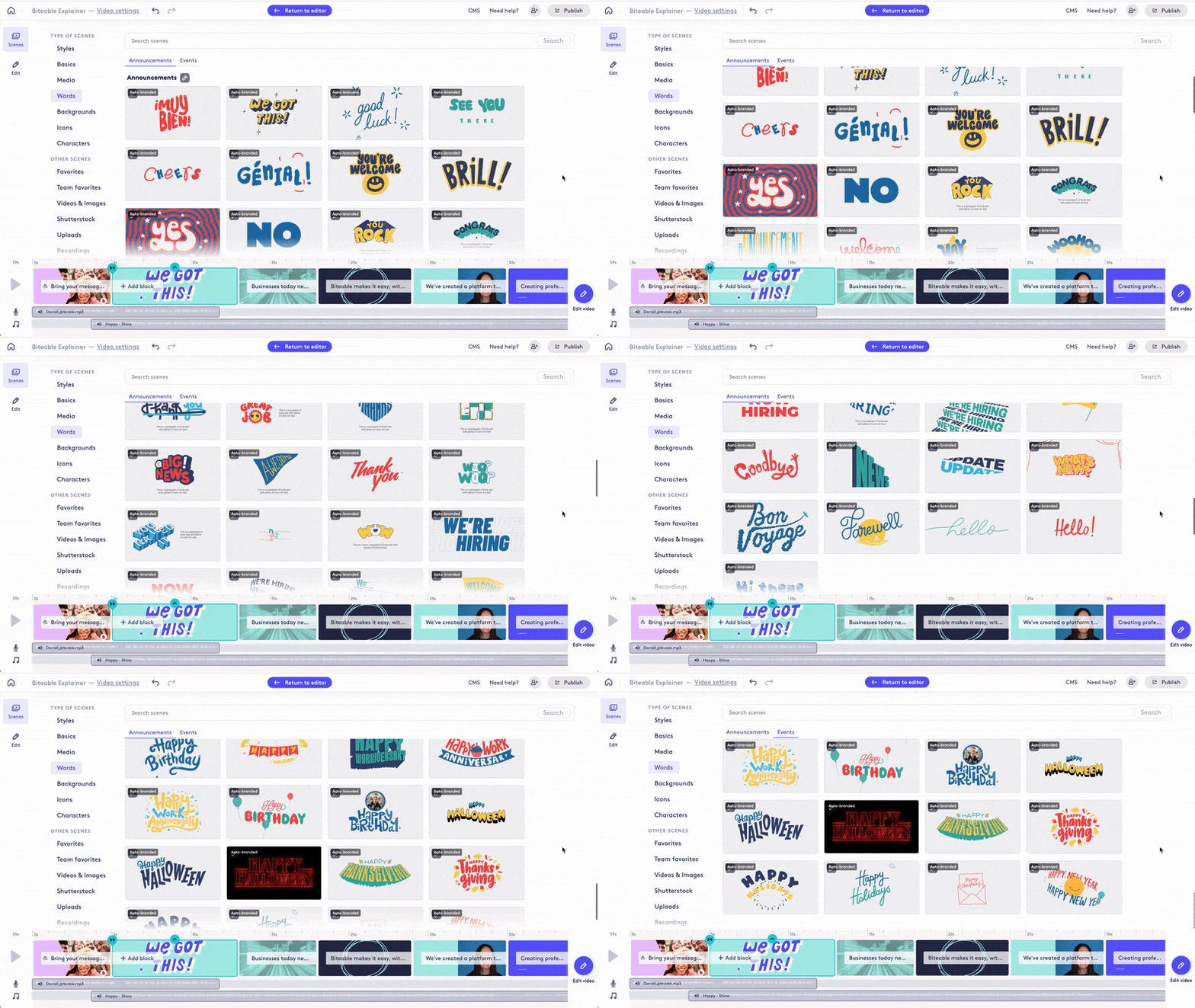
- Announcements
- Events
Backgrounds
Versatile backgrounds for your video.
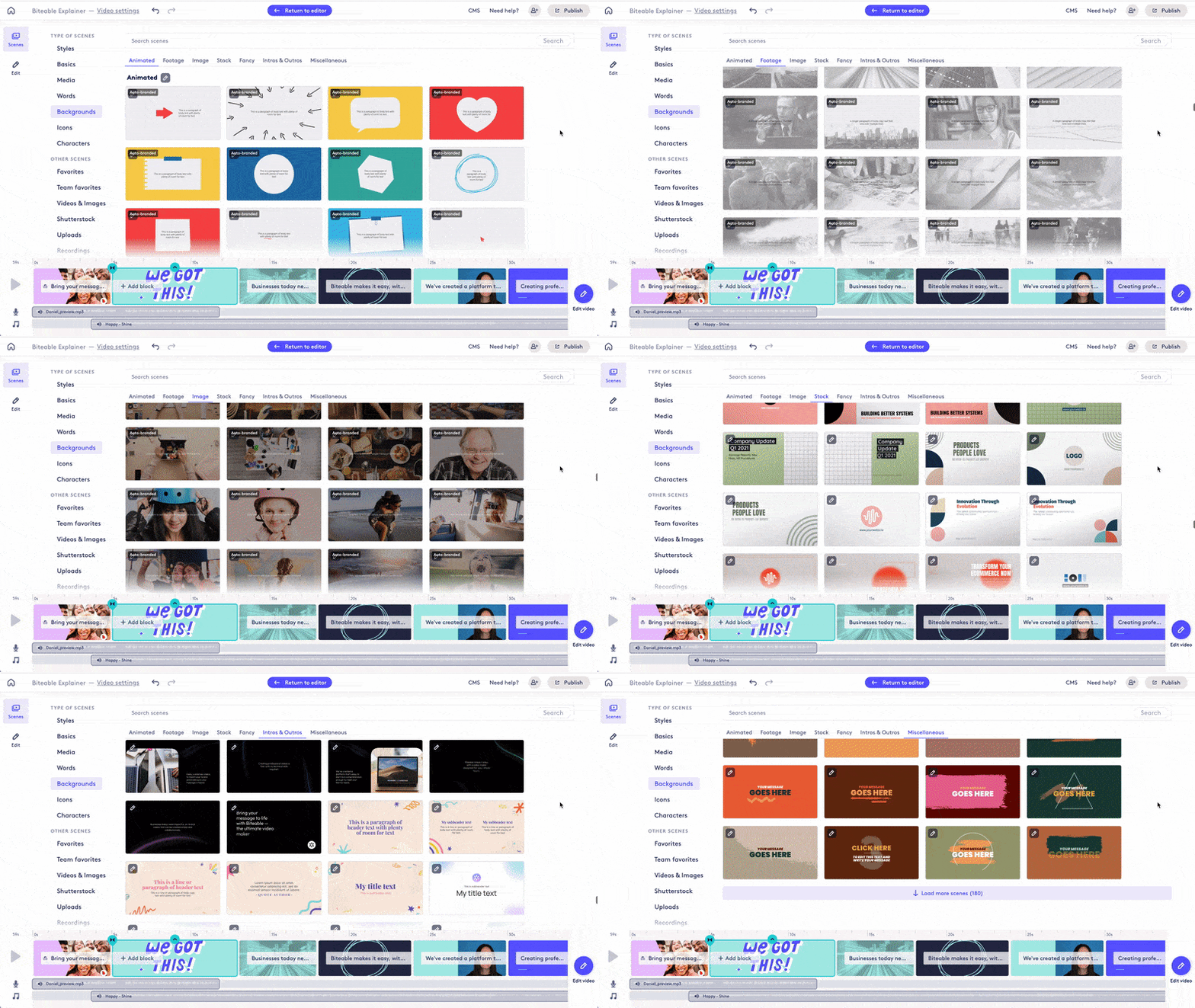
- Animated
- Footage
- Image
- Stock
- Fancy
- Intros & outros
- Miscellaneous
Icons
Animated icons to elevate your message.
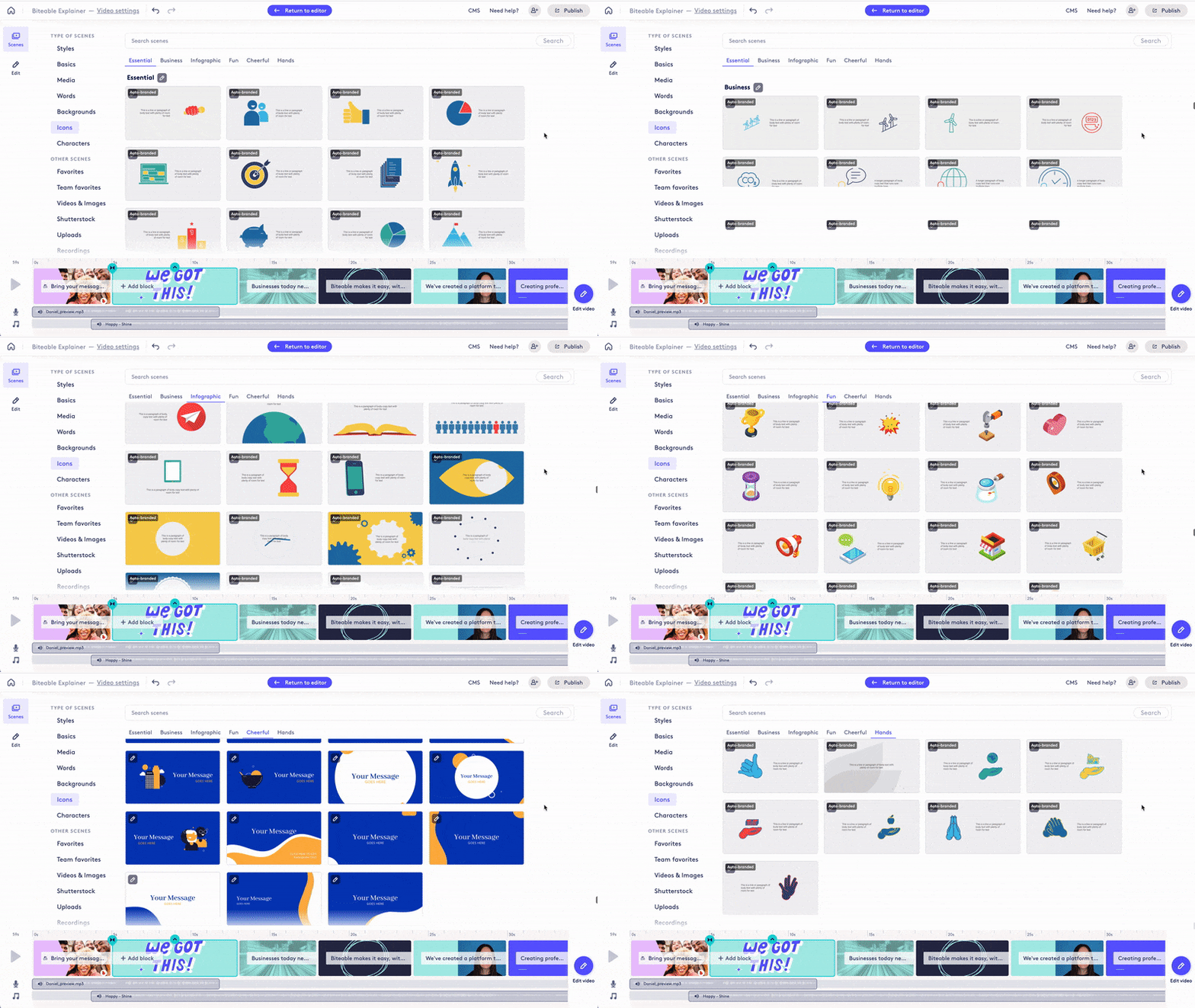
- Essential
- Business
- Infographic
- Fun
- Cheerful
- Hands
Characters
Customizable animated characters to help tell your stories.
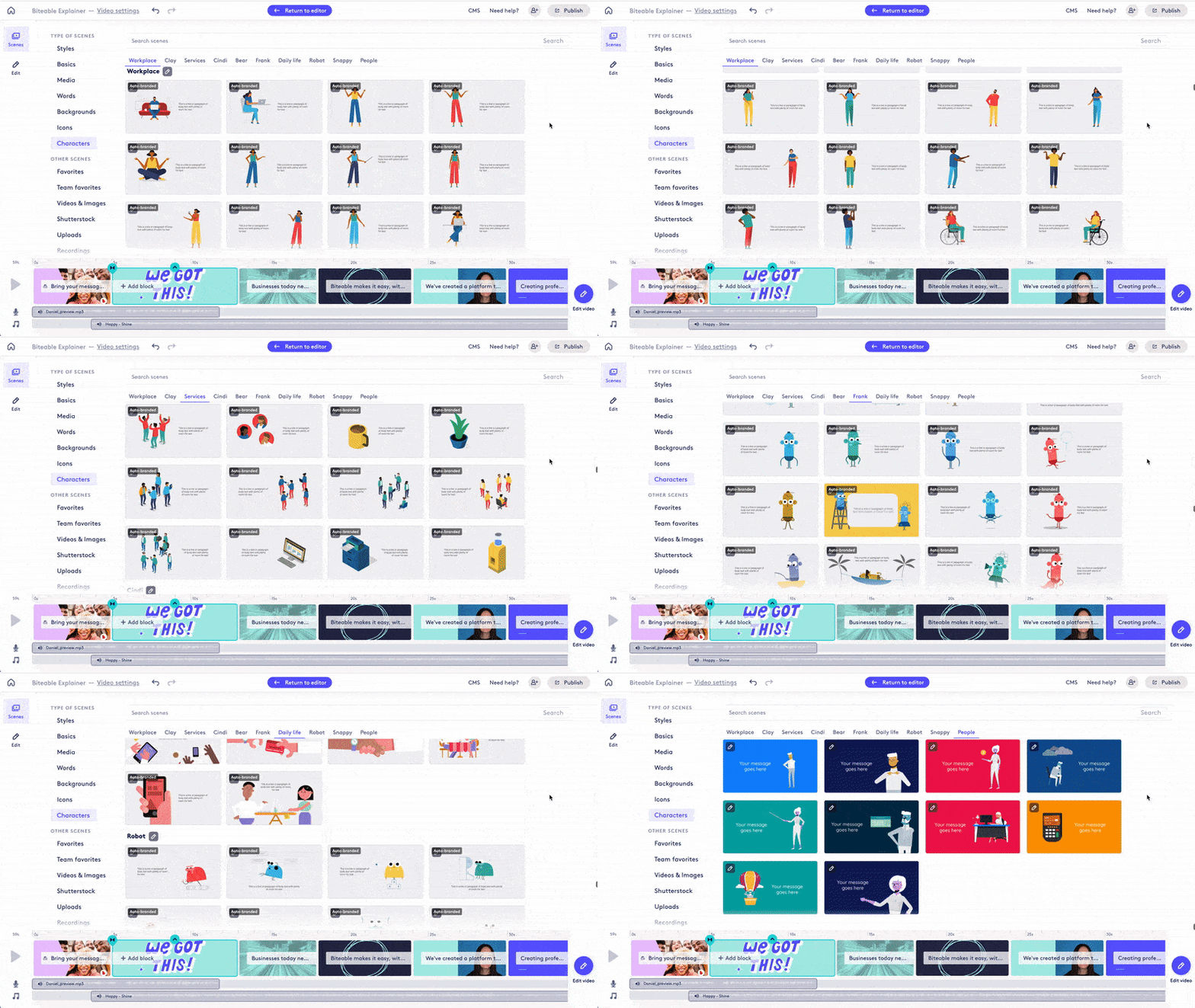
- Workplace
- Clay
- Services
- Cindi
- Bear
- Frank
- Daily life
- Robot
- Snappy
- People
We can't wait to see what you create with Biteable. Reach out to our friendly support team with any questions.