

Add or change a scene transition
On this page
To add or change a scene transition, select a scene (click the scene background, not an element) and click the butterfly (transition) icon, then pick from Biteable’s 8 transitions; the transition is placed before the selected scene, and if you don’t see the icon, zoom in on the timeline at the bottom-right of the editor.
Common Questions:
- How do I add a transition? How do I add transitions?
- How do I add a scene transition?
- How do I change the way my scenes/slides transition?
Add an extra little somethin' somethin' to your project with any of Biteable's groovy scene transitions. Scene transitions add movements or effects between your scenes, and make for an extra engaging video.
If you select a scene and don't see the Butterfly Icon, try Zooming in on the timeline (bottom right of editor)
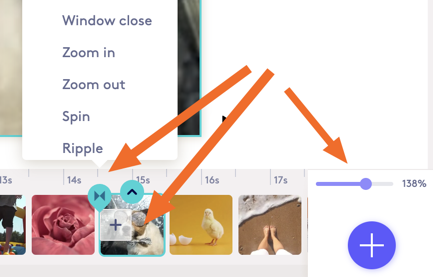
Scene transitions
There are 8 scene transitions for you to choose from. Try each of them to see which one/s look best in your video.
- None
- Swipe Left, Swipe Up
- Cross Fade
- Circle Reveal
- Curtain Open, Curtain Close
- Window Open, Window Close
- Zoom In, Zoom Out
- Spin
- Ripple
Adding a scene transition
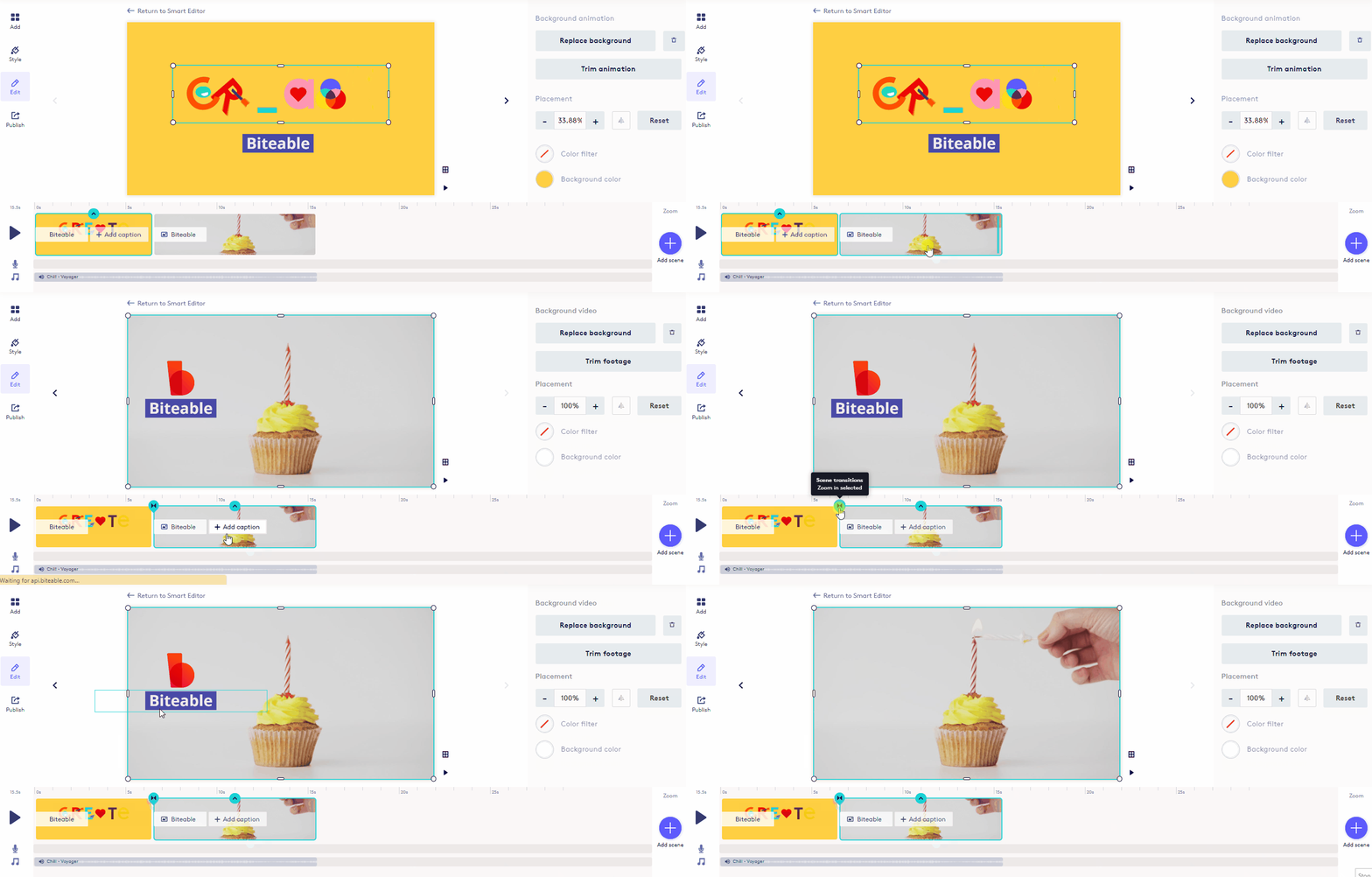
To add a transition to your scenes, follow these easy instructions:
- Select the scene to which you want to add the transition.
- Click on the Butterfly icon (two triangles facing each other on the points) and pick your desired transition from the pop-up. If you have trouble locating or clicking the icon, use the zoom in controls on the right side of the timeline.
- Click Play, and watch it play at the beginning of the scene.
Changing the duration, length, speed of a scene transition
Today, we do not offer the ability to change the speed of scene transitions. If this is something you would like to request as a feature, please send us a note in support.