
Replacing Music Tracks & Adding Multiple Music Tracks
Enhance your videos by working with music tracks in Biteable. This guide will show you how to add, adjust, and time your music for professional-quality audio.
Common Questions
- How do you replace a music track?
- How do I add multiple songs/tracks to a video?
- Can I add a second music track to a video? YES!
Adding Multiple Tracks
You can replace tracks in your project, or add additional tracks. The steps are slightly different to replace vs. add and this article shows how to accomplish both objectives.
Sections in This Guide
- REPLACE A TRACK
- ADD A SECOND (OR MULTIPLE) TRACK(S)
Step 1
To REPLACE a track -> Select your existing track, click the music icon, pick a new track. To ADD another track -> Do NOT select your existing track, click the music icon, ADD a new track
REPLACE A TRACK
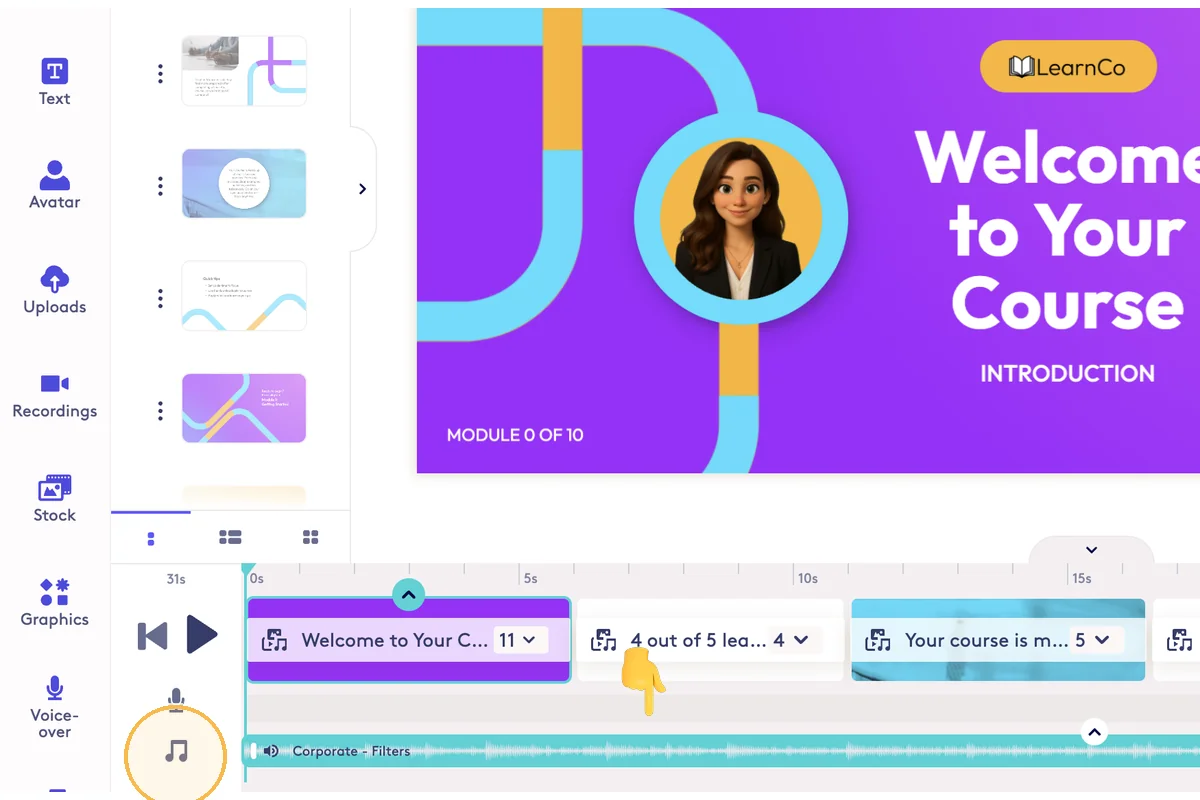
Step 1
Select your existing track in the timeline. Click the music icon.
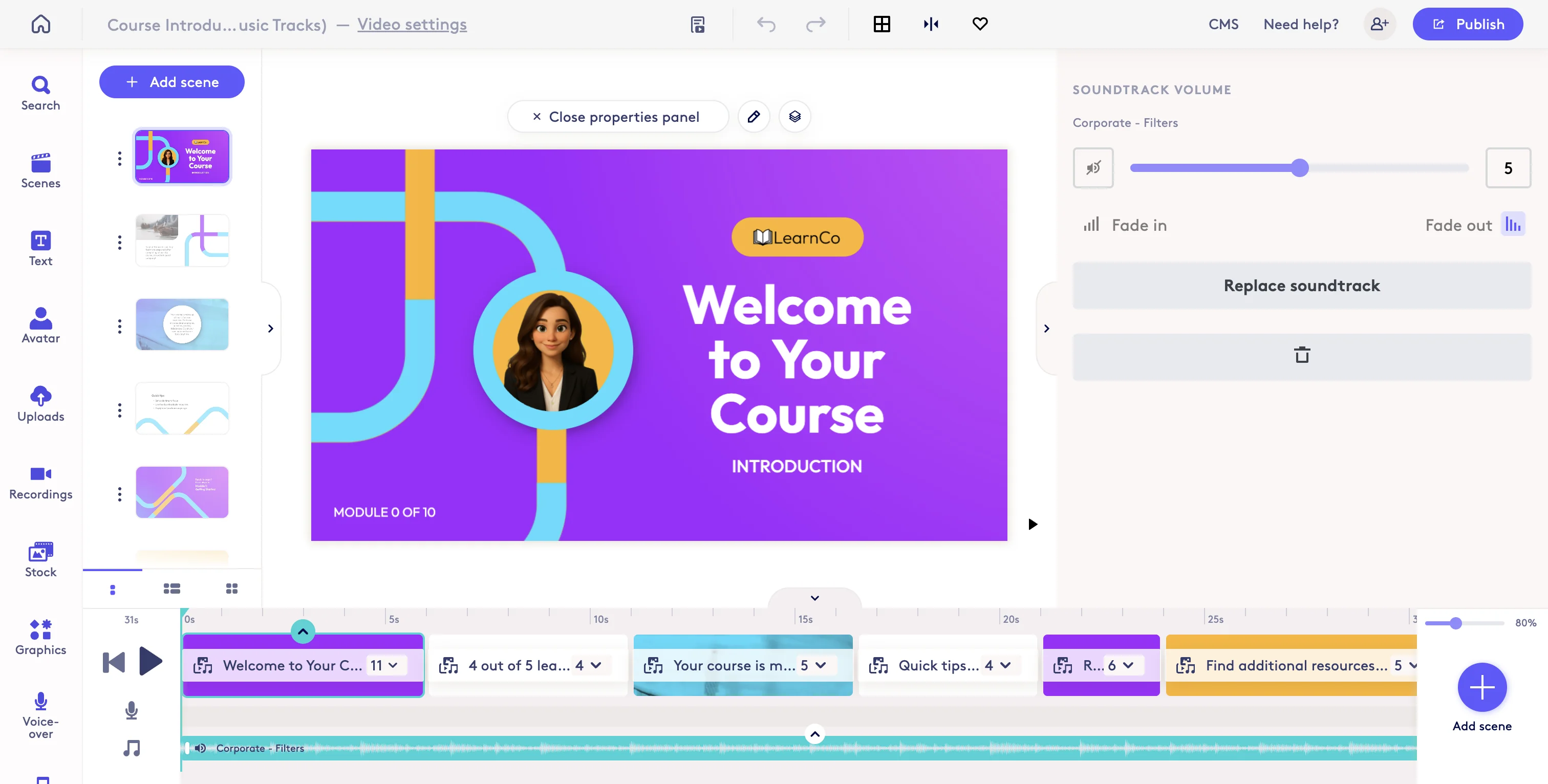
Step 2
Click on 'Corporate - Filters'
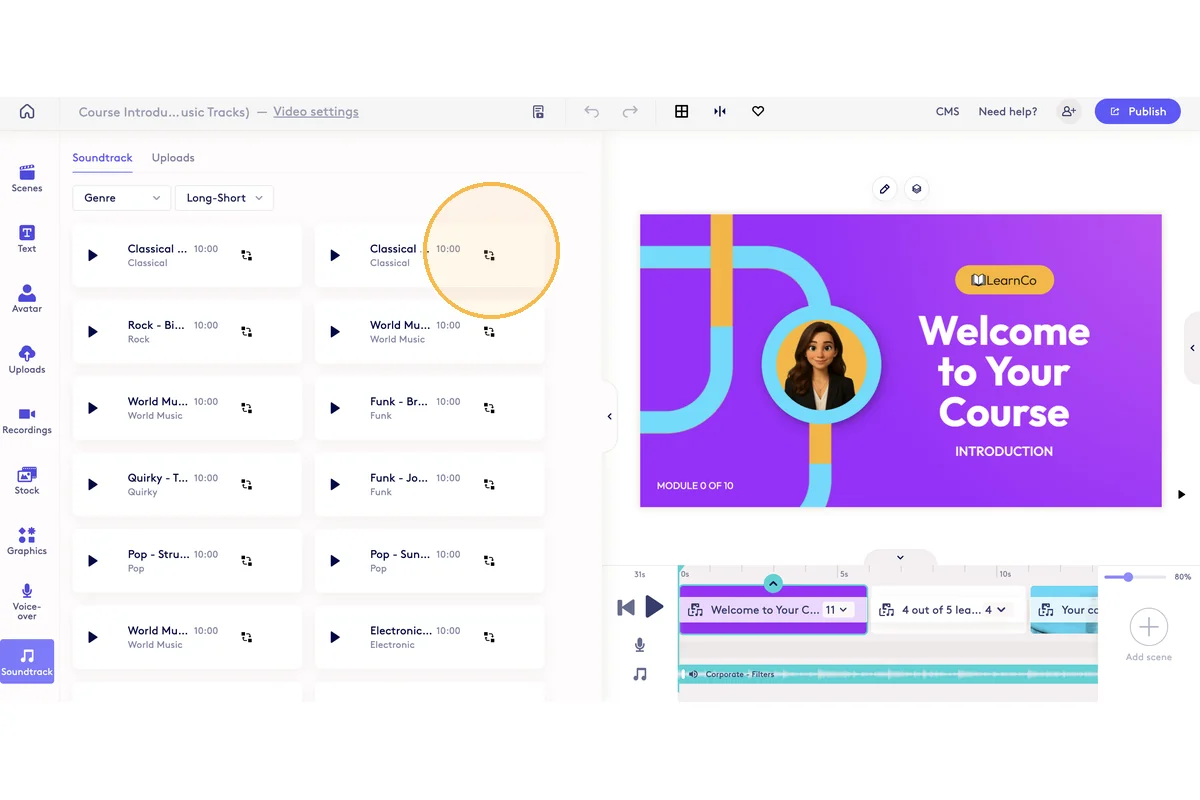
Step 3
This will open the music library where you can select a new track to replace your existing track. You will see the replace icon.
ADD A SECOND (OR MULTIPLE) TRACK(S)
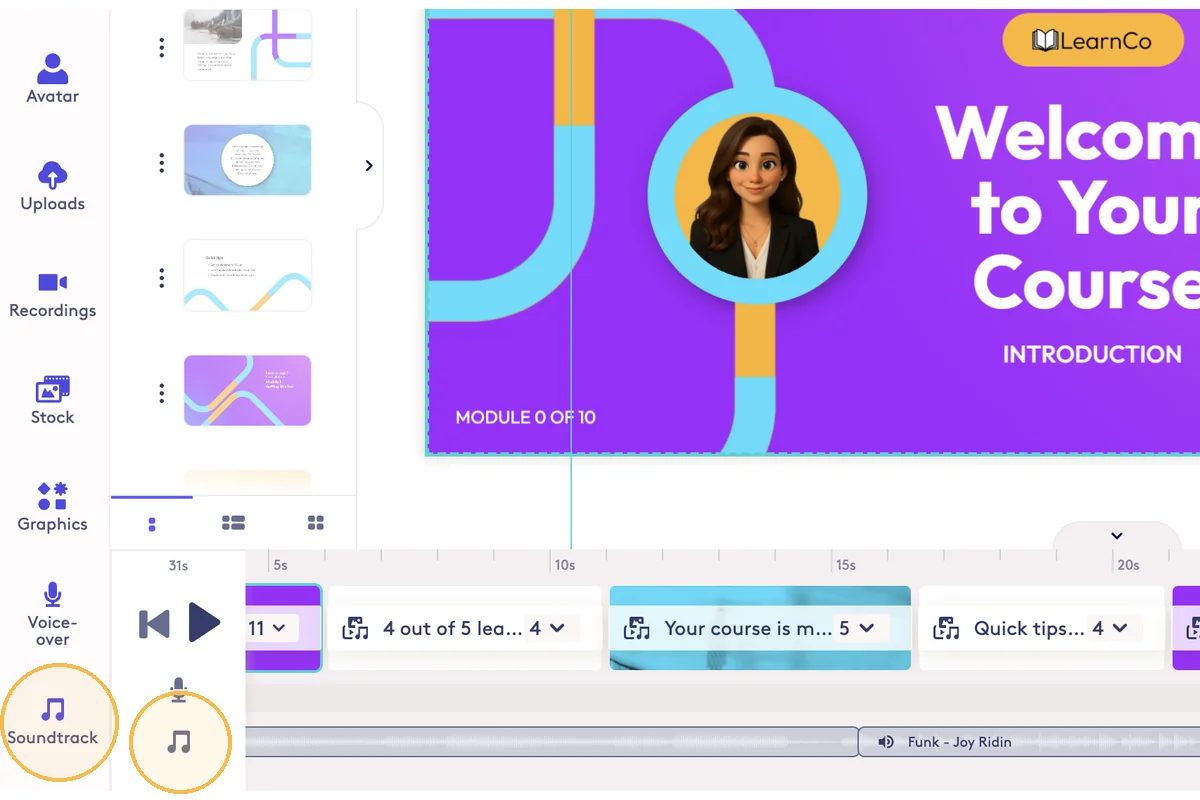
Step 1
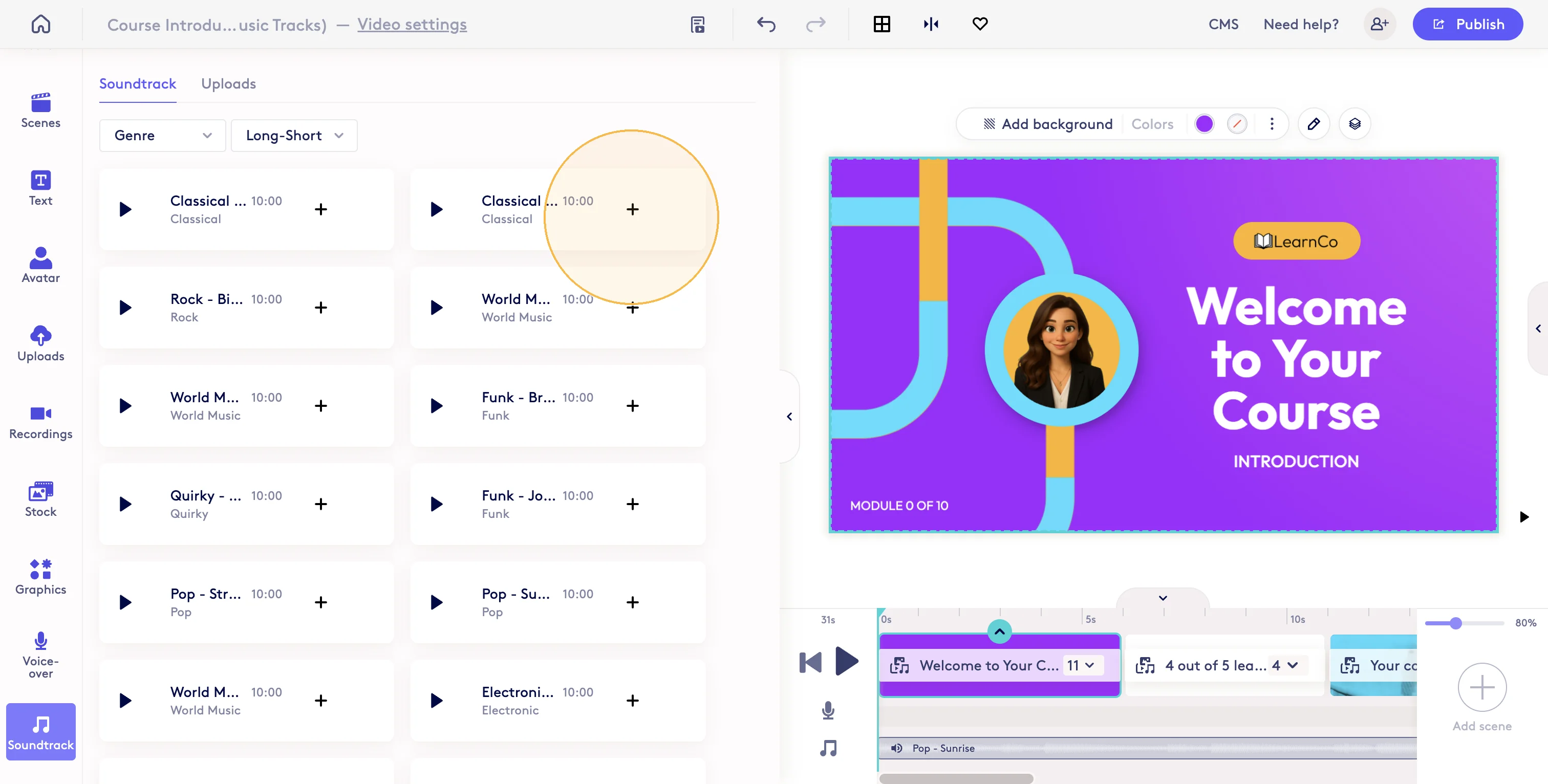
Click the Soundtrack or Music buttons. But make sure your existing track is NOT selected first.
Step 2
This will open the msuic library where you can add an additional track. The plus icon is shown when tracks will be added instead of replaced.
Total Steps: 6
Steps generated by StepHopper, a product of Grasshopper Signup - Create interactive step-by-step guides
Updated on: 25/01/2026
Thank you!