
Add or Replace AI Voiceovers
Add & Replace Voiceovers
Summary
To add voiceovers, select your scene and open the Voice-over tool from the content bar or timeline. Enter text, pick a voice, and generate, then scroll down to click "Add voiceover to timeline."
To replace an existing voiceover, select it, click the link icon, choose "Replace voice-over," make your edits, click "Update," and again scroll down to confirm the addition to the timeline.
Contents
- ADD a new voiceover
- REPLACE a voiceover
1. ADD a new voiceover

1: Select your scene
2: Click 'Voice-over' in the content bar
OR
3: Click the voiceover timeline to open the 'Voice-over' content bar function
2.

1: Add your text
2: Select your voice
3: Click generate
4: To upload a voice (choose Uploads)
3.

IMPORTANT: Scroll all the way down to see the Add button
1: After you generate the voice scroll further down to see 'Add voiceover to timeline'
4.

1: After you add your voice to the timeline, you will see it show up in the voiceover timeline
5. REPLACE a voiceover

1: Select the voiceover and click the link icon
2: Pick 'Replace voice-over'
6.
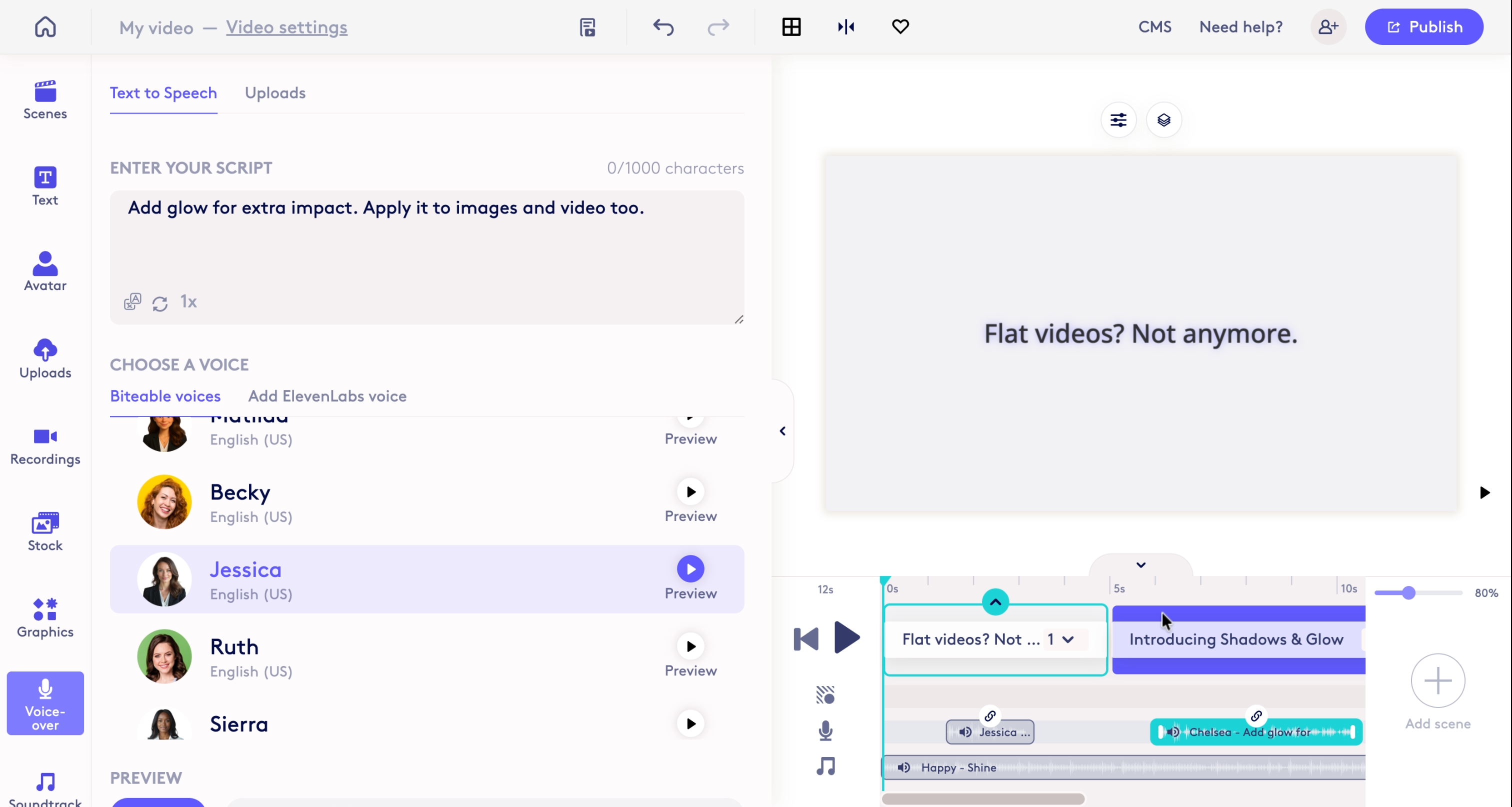
Make any needed adjustments to the voiceover text or voice.
7.

1: Click 'Update' to update the voiceover
2: SCROLL DOWN to and click 'Add voiceover to timeline' to replace the existing voiceover
8.

1: After you add voiceover to timeline, the updated voice will replace the existing voiceover.
Made with Cobalt Capture.
Updated on: 19/05/2026
Thank you!